Client Overview
Client Overview
The Client page is where you have access to all information regarding an Client you created. The page is split into multiple tabs that sort the information by category for easier visualization and allows for a number of actions.
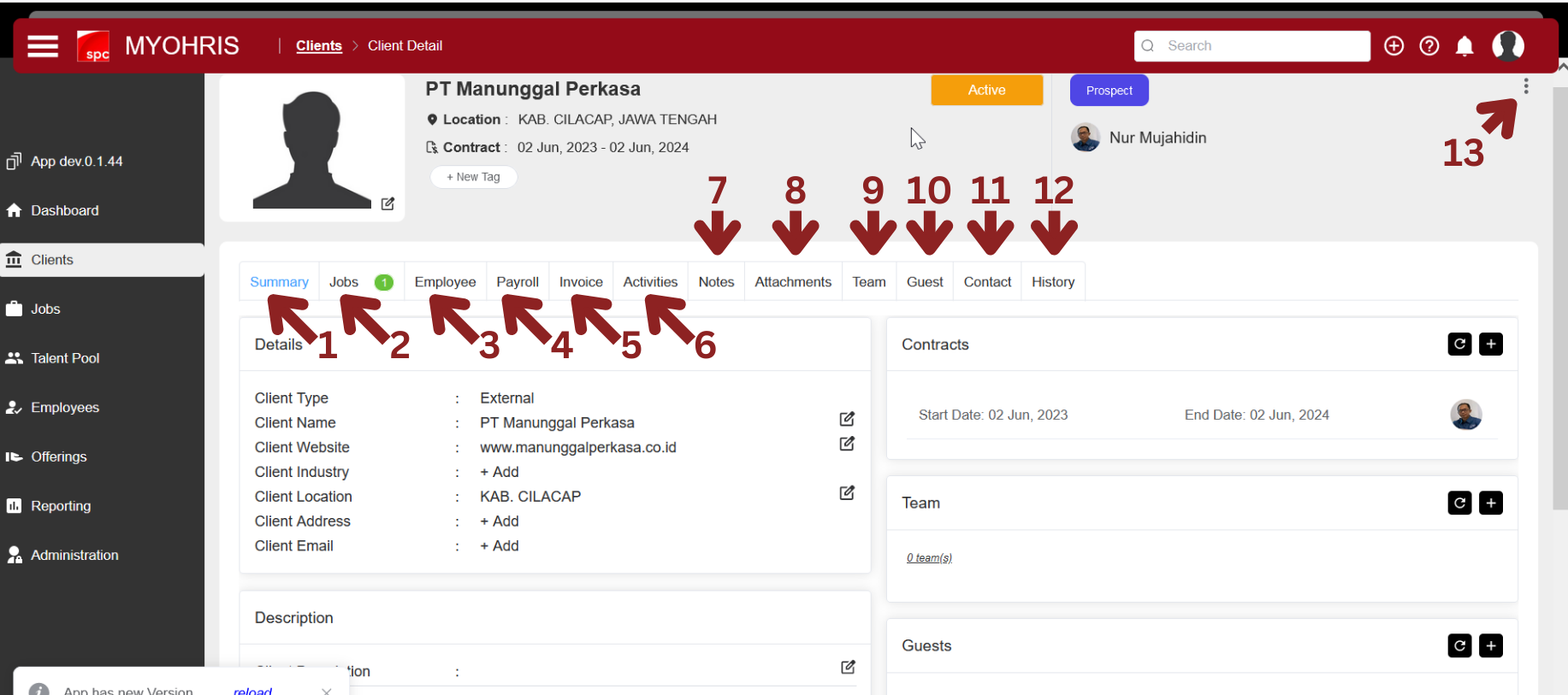
1. Summary
The "Summary" tab displays all the information related to the Organization (Client/Department) and its team.
2. Jobs
The "Jobs" tab displays an overview of all the jobs under an Organization (Client/Department).
3. Employee
(tbd)
4. Payroll
(tbd)
5. Invoice
(tbd)
6. Activities
The "Activities" tab displays all activities related to the Organization (Client/Department). These do not include activities related to jobs under that Organization (Client/Department).
7. Notes
The "Notes" tab displays all notes related to the Organization (Client/Department). These do not include notes related to jobs under that Organization (Client/Department).
8. Attachments
The "Attachments" tab displays all Attachments related to the Organization (Client/Department). These do not include Attachments related to jobs under that Organization (Client/Department).
9. Team
The Owner of the Organization (Client/Department) can use this tab to add or remove team users to the team. Refer to this-article(link) for more information on adding team members.
10. Guests
View, add or remove Guests to the Organization (Client/Department). By default, anyone in the Organization's team can add, remove or delete guests. This tab also allows to modify which actions and information are available to the Guests.
11. Contacts
Displays all contacts under the Organization (Client/Department). By default, anyone in the Organization's team can add, remove or delete contacts.
12. History
The "History" tab displays all past actions related to the Organization (Client/Department).
13. 3-Dots
Dropdown menu giving access to the following actions:
- Move Stage : To move the client to the desired stage
- Schedule Activity : Used to set activity for this client
- Transfer Ownership : To transfer ownership to another user
- Archive : To delete this client (moved to archive folder)
How to access the Client Overview(Client Menu) Page
To access the Clients Overview(Client Menu) Page:
- Click on "Clients" in the side menu.
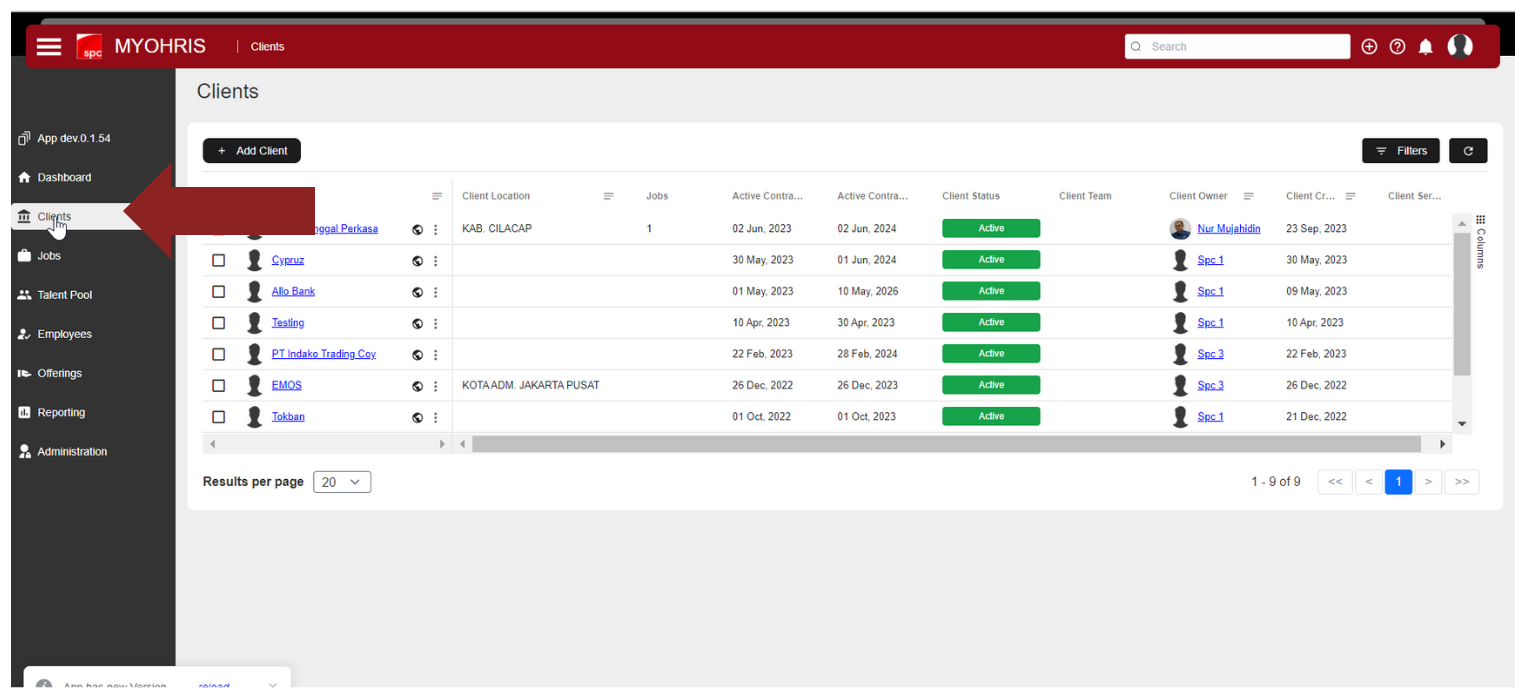
- This page displays an overview of all the Clients(menu) you have access to as an Client owner, team member or Admin. Refer to this-article(link) for information about Client ownership & team.
- If you have Admin access level, you will be able to view all the Clients created under your company's account.
Client Overview(Clients Menu) Page
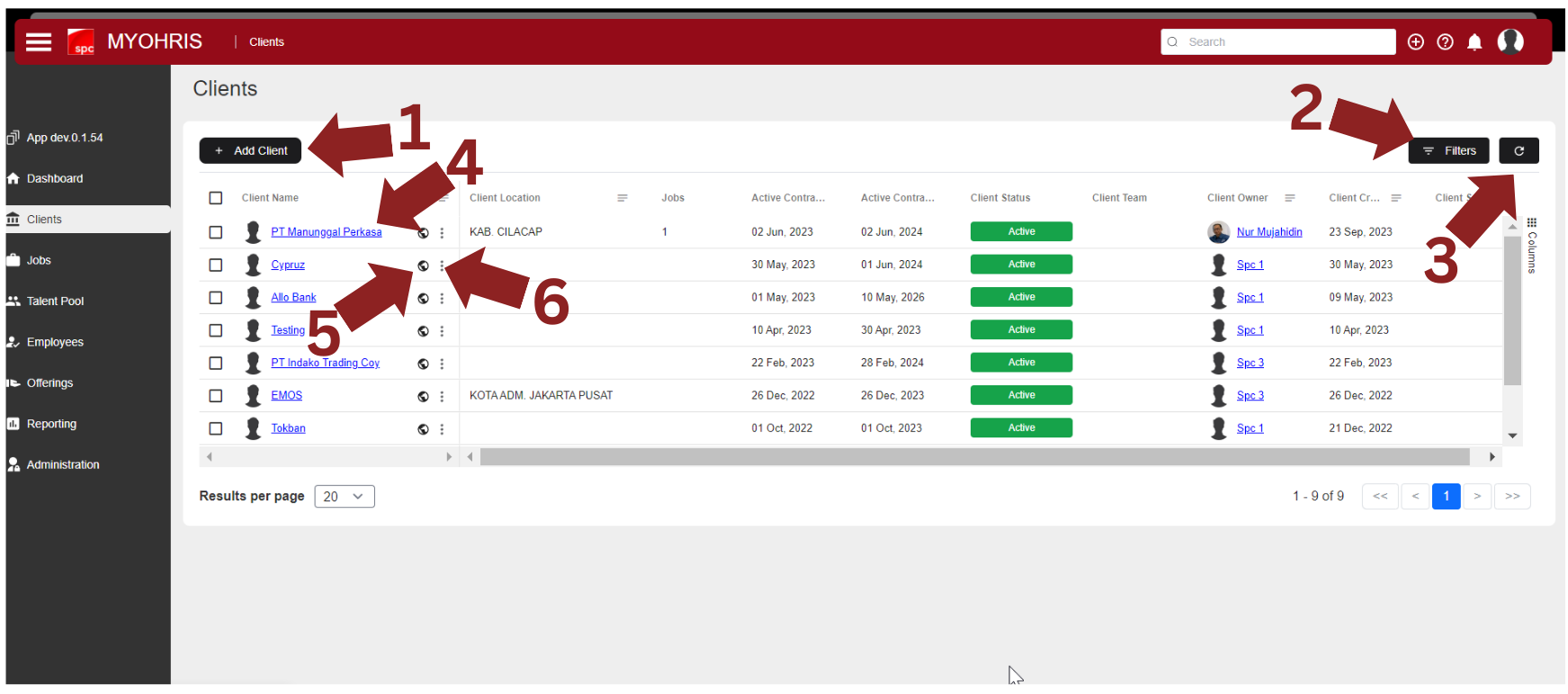
On the organization overview page, you have access to a variety of functions / options:
1. Create a new Client
2. Refresh: Refresh the information displayed on screen.
3. Filters: Filter-Client(Link) Clients by name, industry, location, owner,...
4. Client Name: Open the Detail Client's page.
5. Client Visibility: View the level-of-visibility(link) of the client.
6. Three Dots: Dropdown menu that allows users to edit and delete the Client, add jobs, edit visibility and ownership. This can only be used by the client owner or an Admin.