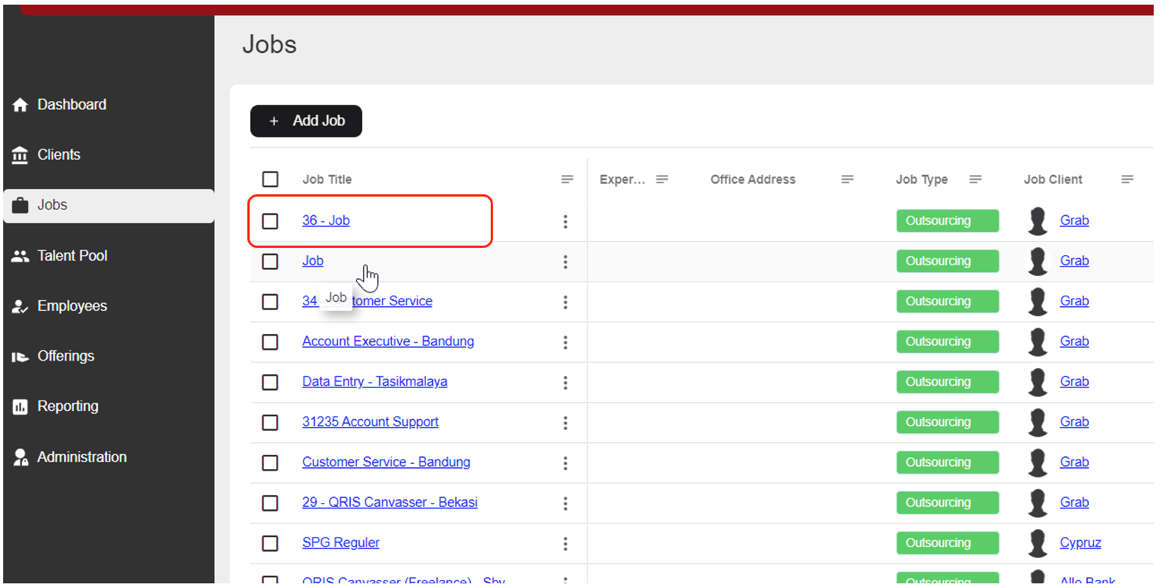
How To Create Job
- How to Create New Job
a. How to access Create Job Form
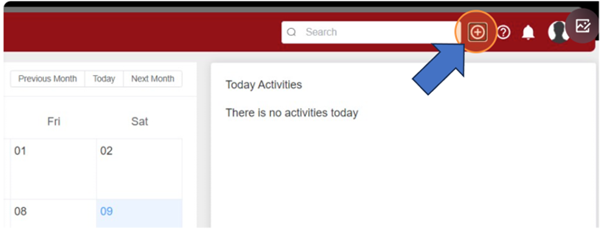
- Via Shortcut
Click here.
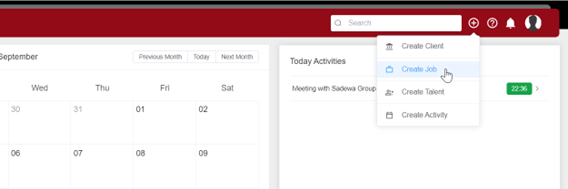
Click “Create Job”
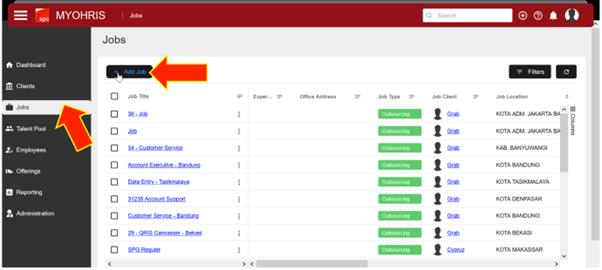
- Via “Job” Menu
In Jobs Menu> Click “+ Add Job” Button
b. How to fill “Create Job” Form
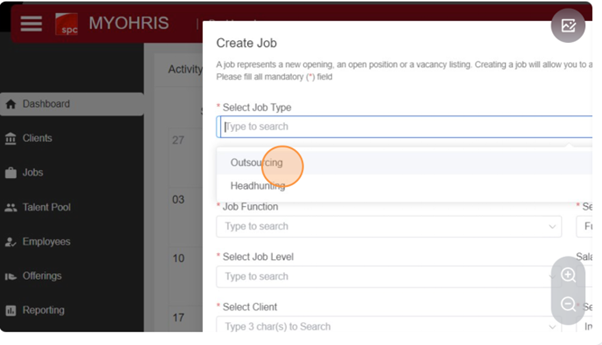
In “Create Job” form, Select the job type, for example, here I choose "Outsourcing"
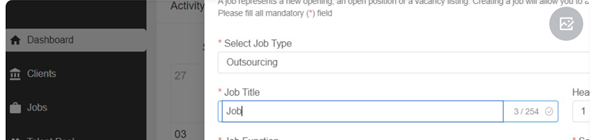
Fill in the job title as per your preference.

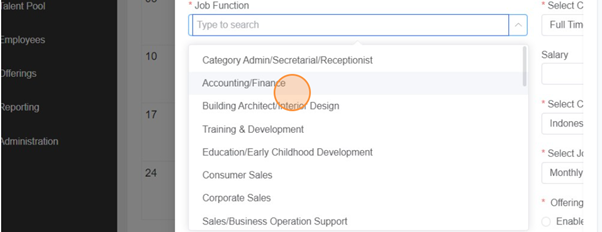
Click the "Job Function" field.
Choose from the available job functions as per your preference. Here I Choose “Accounting/Finance”

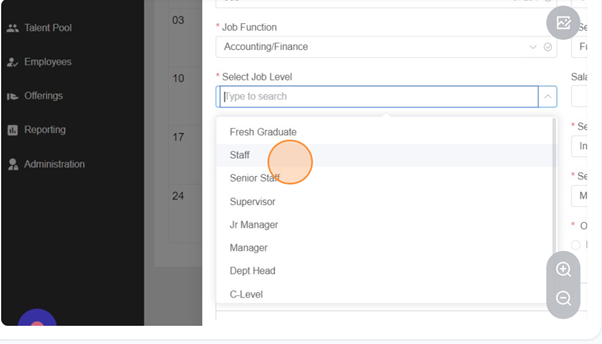
Click the "Select Job Level" field. Choose from the available job level as per your preference. Here I choose "Staff"

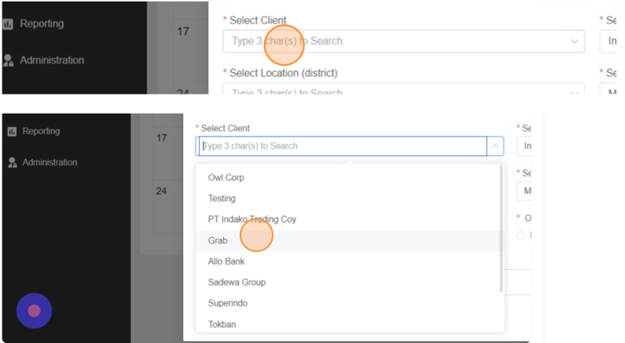
Click the "Select Client" field. Then Choose from the available Client as per your preference. Here I Choose “Grab”
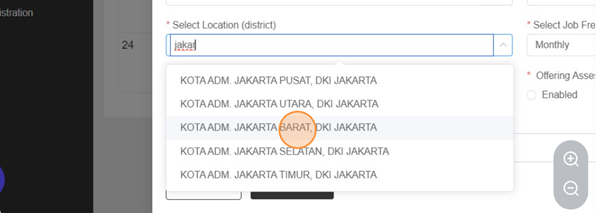
Select the Location (District) for the job. Here, I choose JAKARTA BARAT.
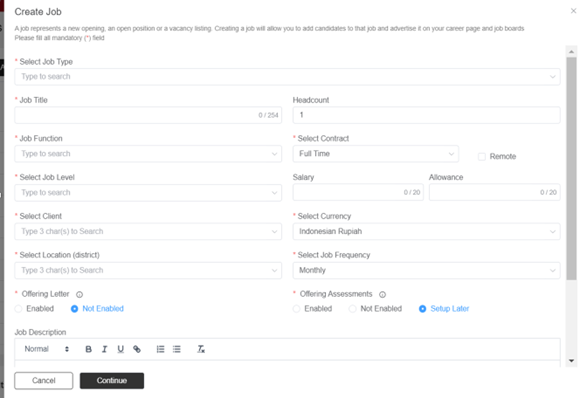
For the Offering Letter, you can choose to 'use' it by clicking Enable or 'not use' it by clicking Disable. Here I choose “Enabled”

Fill in the Headcount as per your requirements.
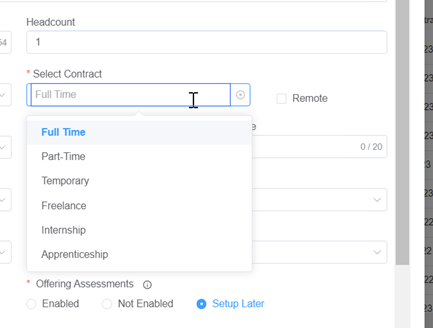
*Select the Contract based on the type of Job needed.
Click to check the selection box 'Remote' if the job is remotable
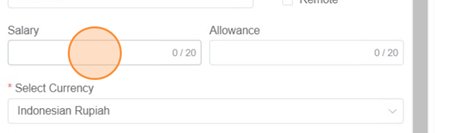
Fill in the salary & Allowance field with the desired salary & Allowance amount.
Then select the Currency as needed.
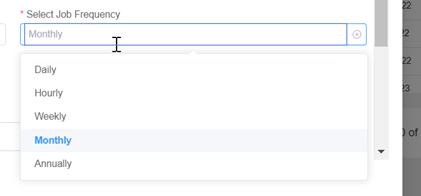
*Select the Job Frequency or the salary payment interval.
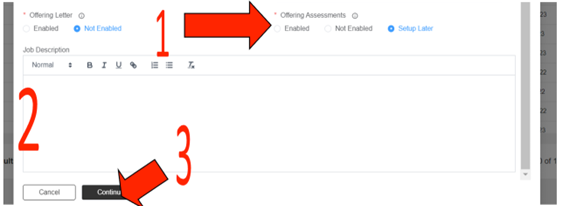
1) In the offering Assessments, please choose: 'Enable' if you are using assessments, 'Not Enable' if you are not using assessments, or 'Setup Later' if you want to set up assessments later
2) Fill in the "Job Description" to describe the job if necessary.
3) Click the "Continue" button once you have finished.
If the added jobs are successfully saved in the system, they will appear in the List Job (Job Title) on the Jobs menu.